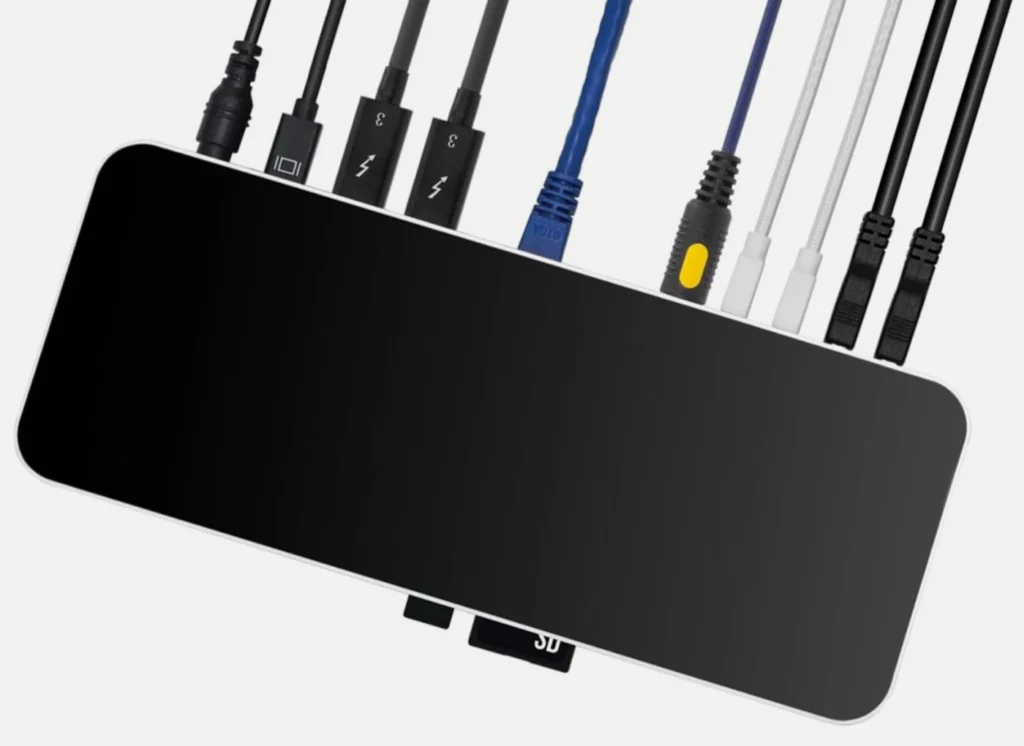
I have spent years refining my desk setup. I’ve gone from giant tower PCs with everything integrated to the sleek, minimalist (and port-starved) world of modern laptops. If you are anything like me, you love the portability of a MacBook Pro or a thin Windows Ultrabook, but you aren’t a fan of finding, storing, attaching, and keeping track of dongles. While the OWC Thunderbolt Dock isn’t ideal for travel, the instant desktop connection to power, a display, various devices, and wired Ethernet is.
And that reflects the promise of Thunderbolt 3, 4 (and now 5): one cable to rule them all. But finding a dock that actually delivers on that promise without compromises is harder than it looks. Enter the $179.99 OWC 14-Port Thunderbolt Dock, which has become the anchor of my laptop review workflow.
Form
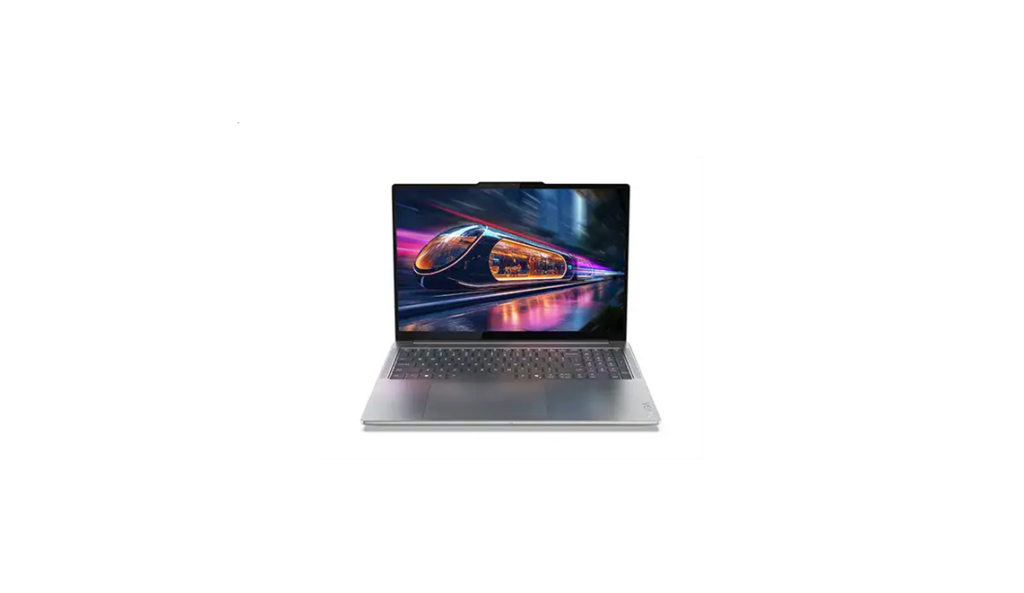
Let’s start with the aesthetics because, let’s be honest, if it’s going to sit on your desk 24/7, it needs to look good. OWC has nailed the industrial design here. The chassis is a single piece of aluminum that feels dense and premium. The dock is “spaceish gray” with a smooth black top surface that matches the color schemes for many of the eval laptops that cross my desk. And a nice touch for those who care about a cohesive aesthetic.
The OWC 14-Port Thunderbolt Dock is not the smallest dock on the market, with an over 9-inch wide footprint, but it is low-profile. The dock sits pretty unobtrusively under a monitor riser or off to the side. The glossy black top is a fingerprint magnet, but since it’s a set-it-and-forget-it device, that hasn’t really been an issue for me. I usually sit an external SSD enclosure on top of the dock.
My one negative note is the power brick. It is massive. It’s almost as big as the dock itself. This is standard for docks that provide high-wattage charging, but you’ll definitely want a way to hide that brick under your desk. It is decidedly not a mobile dock, unless for you, mobile means dragging a roller bag (I saw you at CES!).
Function
The “14-Port” moniker isn’t just marketing fluff; this thing is packed. OWC has thoughtfully arranged the ports between the front and back, which is critical for cable management.
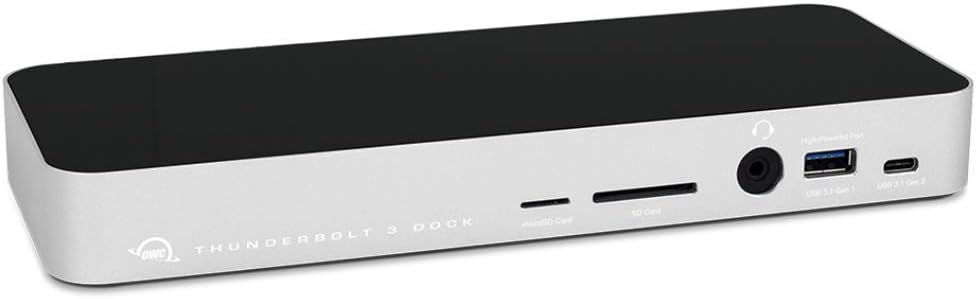
On the front, you get the ports you need to access quickly:
- One USB-C (USB 3.1 Gen 2) port (10Gb/s)
- One USB-A (USB 3.1 Gen 1) port (5Gb/s)
- SD and MicroSD card slots (UHS-II)
- A combo audio jack
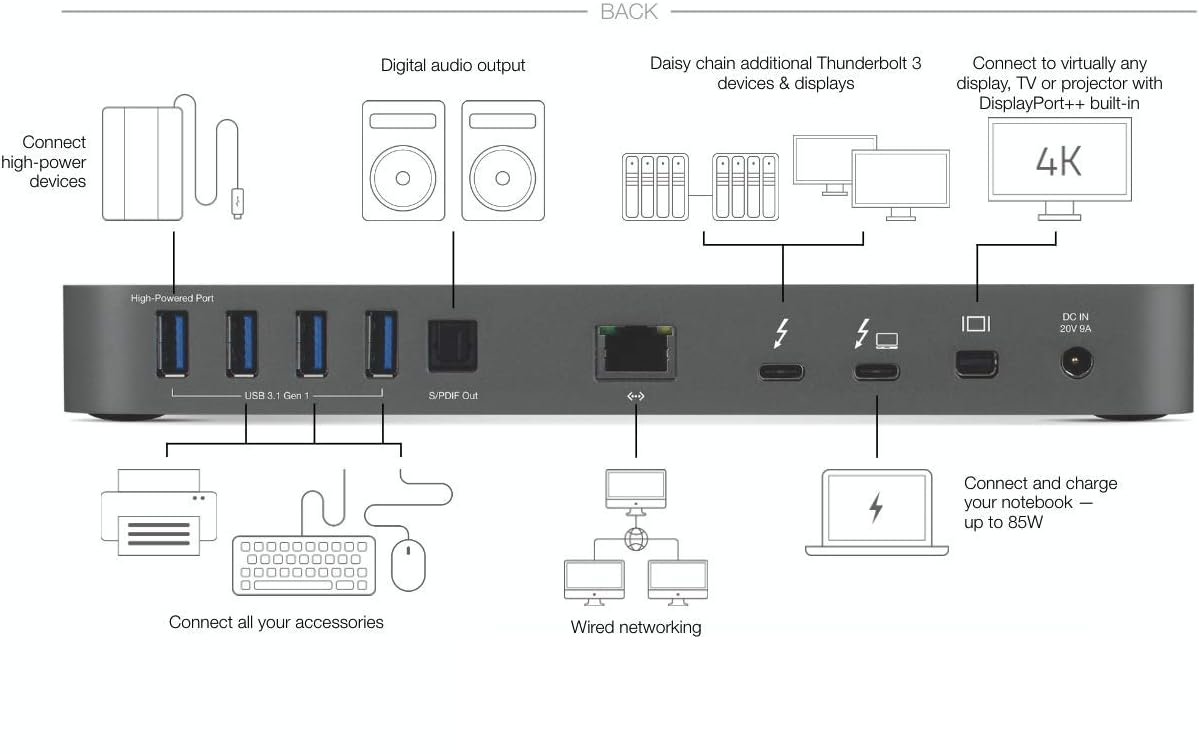
On the back, you have the “permanent” connections:
- Four more USB-A ports
- S/PDIF digital audio output (a rarity these days!—now I just need an optical speaker for my desk)
- Gigabit Ethernet
- Mini DisplayPort 1.2
- Two Thunderbolt 3 ports (one for the host, one for daisy-chaining)
Because I review accessories even more often than I review new laptops, I have an EZQuest USB-C Slim Gen 2 Hub extender on the USB-C port, offering even more options for connections without worrying about connectivity or power.
The dock provides 85W of power delivery to the host laptop. This is a sweet spot for most 13-inch and 15-inch laptops. Even on my 14-inch MacBook, it keeps the battery topped up.
The dock, however, is underpowered for most mobile workstations, which will require their own bricks for charging. The single cable still provides access to all the devices and connections serviced through one of the workstation’s Thunderbolt ports.
My Experience
I’ve been using the OWC Thunderbolt 3 Dock as the central hub for my home office, and the “one cable” lifestyle is genuinely transformative. I sit down, plug in a single Thunderbolt cable, and instantly my external monitor wakes up, my hard drives mount, my wired internet connects, and my laptop starts charging. It feels like magic every time.
The data speeds are impressive. I tested the SD card reader with some high-speed UHS-II cards from a recent camera shoot, and the transfer speeds were snappy—much faster than the cheap USB dongle I used to rely on. One minor nuance I discovered is that you generally can’t use the SD and MicroSD slots simultaneously for high-speed transfers as they share bandwidth, but for 99% of users, that’s a non-issue.
The video output configuration is interesting. The dock uses a Mini DisplayPort rather than a full-sized DisplayPort or HDMI. This meant I had to dig out a specific cable to connect my 4K monitor. However, because it has that secondary Thunderbolt 3 port, I could easily run a second monitor using a USB-C to HDMI adapter, or leveraging an HDMI port on the laptop. Driving dual displays was smooth, with no flickering or lag.
I also appreciate the S/PDIF port. For those who run audio to a dedicated receiver, having a clean optical digital out from the dock means avoiding USB interference in the audio signal. It’s a feature most people won’t use, but for OWC’s “Pro” audience target, it’s a differentiating feature.
A quick shout-out to OWC’s “Dock Ejector” software. Usually, I hate installing driver software for peripherals, but this utility sits in the menu bar and lets you safely eject all drives connected to the dock with one click. It saves me from manually ejecting three different backup drives before I grab my laptop to leave.
The Verdict
The OWC 14-Port Thunderbolt 3 Dock is a powerhouse. It doesn’t just expand your port count; it organizes your entire workspace. The build quality is excellent, the port selection covers almost every legacy and modern need (USB-A and USB-C), and the 85W charging is robust enough for pro-level machines.
It’s not cheap, and the reliance on Mini DisplayPort might require a new cable for some, but for the convenience and reliability it offers, it is arguably one of the best investments you can make for your productivity. If you are tired of the dongle life, this is the cure.
Pros:
- Massive variety of ports (14 total)
- Solid aluminum build quality
- 85W laptop charging
- Front-facing SD/MicroSD slots
Cons:
- Power brick is very large
- Mini DisplayPort instead of full-size DP or HDMI
- Glossy top gathers dust/fingerprints
Highly Recommended.

His work has been featured in Harvard Business Review, Fast Company, Wired, NASA Ask, and dozens of other magazines and websites. His analysis on the future of work can be found at SeriousInsights.net. He is also the author of Understanding Artificial Intelligence, Cyberlife, Rethinking Smart Objects, and Empower Business with Generative AI.
Rasmus regularly speaks on the future of work at events such as Comic-Con International, Wondercon, Impact, Enterprise AI World, Worktech, CLO Symposium, KMWorld, AAAI, Computers in Libraries, Microsoft’s Building the Future, Educause, Expo Capital Humano, Devlearn, Internet Librarian, CAMEX, EduComm, and Sourcing Summit Europe.
As an Affiliate Instructor, Rasmus teaches scenario planning at the University of Washington and is an Associate Adjunct Professor at Bellevue College.